A PDF pattern that does not print to scale has almost always been resized by software, not by the file. The usual culprit is a "Fit" or "Shrink oversized pages" option in the PDF reader; the next most common are a printer driver set to fit the page, a browser's built-in PDF viewer, or a paper size mismatch between A4 and US Letter. Set the reader to Actual size or 100 %, check that the paper size matches the file, print page 1 only, and measure the test square.
This guide is a troubleshooting sequence: work down it in order and stop at the first fix that brings the square back to size.
First, measure how wrong it is
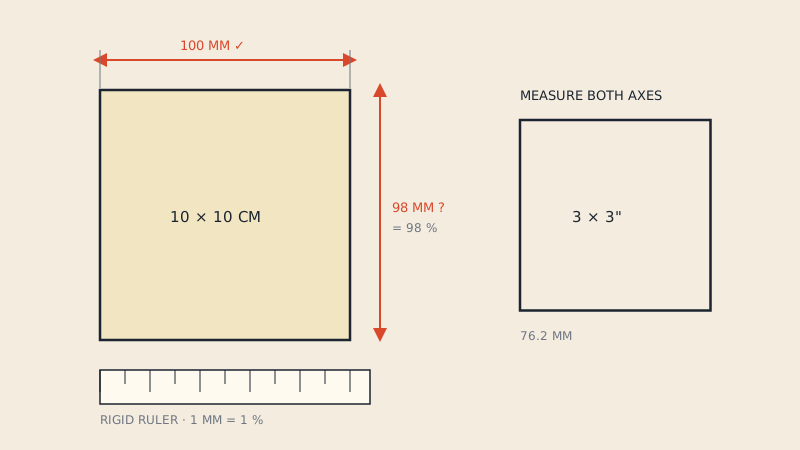
Print only the page with the test square and measure it with a rigid ruler. The size of the error tells you where to look.
| Measured 10 cm square | Error | Most likely cause |
|---|---|---|
| 9.5-9.9 cm | 1-5 % small | "Fit" or "Shrink oversized pages" in the reader |
| 9.2-9.4 cm | about 6-8 % small | A4 file fitted onto US Letter (or the reverse) |
| 9.8-9.9 cm, reader at 100 % | 1-2 % small | Printer driver scaling or borderless mode |
| Exactly 10 cm one way, short the other | Uneven | Paper slipping, or a driver "fit" in one direction |
| Larger than 10 cm | Enlarged | Custom scale left above 100 %, or a fit option enlarging a small page |
These ranges are typical, not exact: the amount a "fit" option shrinks a page depends on your printer's margins. How to measure properly, and how much error is acceptable, is covered in our guide to the test square.
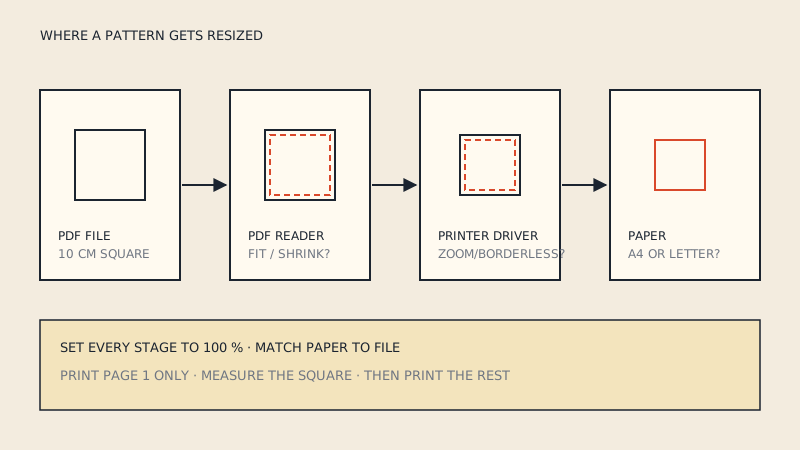
Fix 1: the PDF reader's scaling
Every PDF reader can resize pages to fit the paper, and some do it by default.
Adobe Acrobat Reader (Windows and macOS)
In the Print dialog, under Page Sizing & Handling, choose Size, then select Actual size. Avoid Fit and Shrink oversized pages: both reduce the page whenever the content area is larger than the printable area, which on a tiled pattern it usually is by a few millimetres. If you prefer, Custom Scale set to 100 % does the same job as Actual size.
Leave Choose paper source by PDF page size unticked unless you know your printer has a tray for each size, and check that Poster is not selected - that option tiles a page by itself and adds its own overlaps.
macOS Preview
In the Print dialog, choose Scale and set it to 100 % rather than Scale to Fit. If the dialog only shows a few options, click Show Details to see the full panel.
Browser PDF viewers
The built-in viewers in Chrome, Edge, Firefox and Safari are convenient but each handles scaling in its own way, and the default is not always 100 %. If your square is off and you printed from a browser tab, download the file and print it from a dedicated PDF reader. That one change fixes a large share of the scaling problems we hear about.
Other readers
Whatever program you use, look for an option named actual size, 100 %, none, or no scaling. Avoid anything with fit, shrink, fill or scale to paper in its name.
Fix 2: the printer driver
Below the PDF reader sits the printer driver, with its own settings under Printer Properties, Preferences or the printer's section of the dialog. Some drivers have their own "fit to page", "reduce/enlarge" or "zoom" option that applies on top of the reader. Others shrink the image slightly in borderless mode so the edges bleed off the paper.
Check that:
- page scaling or reduce/enlarge is off, or at 100 %;
- borderless printing is off (it enlarges slightly to bleed, then crops);
- the driver's paper size is the same as the reader's.
Driver menus differ between manufacturers, so we will not guess at names. If you cannot find the setting, the printer's manual or support page will list it under scaling or layout.
Fix 3: A4 and US Letter mismatch
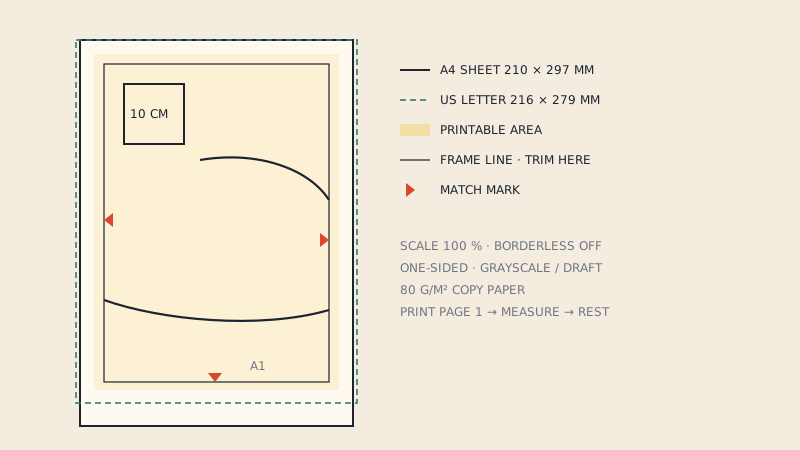
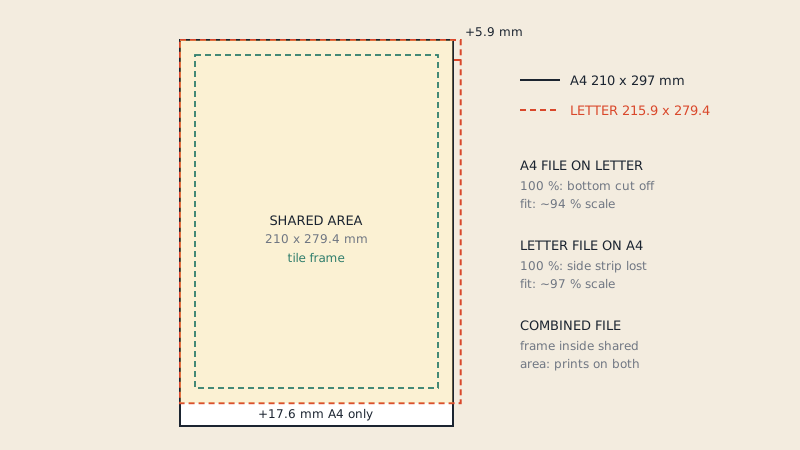
A4 is 210 × 297 mm; US Letter is 216 × 279 mm (8.5 × 11"). Letter is a little wider and noticeably shorter. If the pattern file is laid out for A4 and your printer holds Letter, a reader set to fit will shrink each page by roughly 6 % so the extra height fits - which matches the 9.4 cm square many people see.
The fix is not to scale but to use the right file:
- Check the page size of the PDF in the reader's document properties.
- If the pattern comes in both an A4 and a Letter version, print the one that matches your paper.
- If it only comes in A4 and you only have Letter, print at 100 % and accept that a strip at the bottom of each page may be cut off. Check whether the strip carries any lines; on many patterns it only holds margin.
More on the two sizes, and what happens with each wrong combination, is in US Letter vs A4.
Fix 4: margins and clipping
If the square is correct but lines are missing at the edges of the page, the reader did not scale - the printer simply cannot print that close to the edge. Most home printers leave a few millimetres unprinted on each side, and the bottom margin is often the largest.
A well-made pattern keeps everything inside a frame that sits within a typical printer's printable area, so a small loss at the edge only removes blank margin. If the cut-off part carries match marks or pattern lines, try another printer or use a large-format print instead.
Fix 5: the file itself
Rarely, the PDF really is the wrong size: it was exported at the wrong scale, or someone saved a resized copy. Signs that the problem is in the file:
- the test square is wrong on every printer and in every reader;
- the reader reports a page size that is not A4, Letter, A0 or another standard size;
- the square is correct but the pattern pieces do not match the published finished measurements.
In that case, contact whoever made the pattern. Do not "correct" it with a custom scale: fixing a 97 % file by printing at 103 % is approximate at best and makes every later print a guess.
A repeatable printing routine
Once you have found the right settings, make them hard to lose:
- Print from the same desktop PDF reader every time.
- Save a printer preset (many drivers allow this) with scaling off and borderless off.
- Print page 1 alone and measure before printing the rest.
- Print all pages in one job, on one printer, with one paper type.
Our home printing guide for A4 and US Letter covers paper, ink and page order in more detail.
When to skip home printing altogether
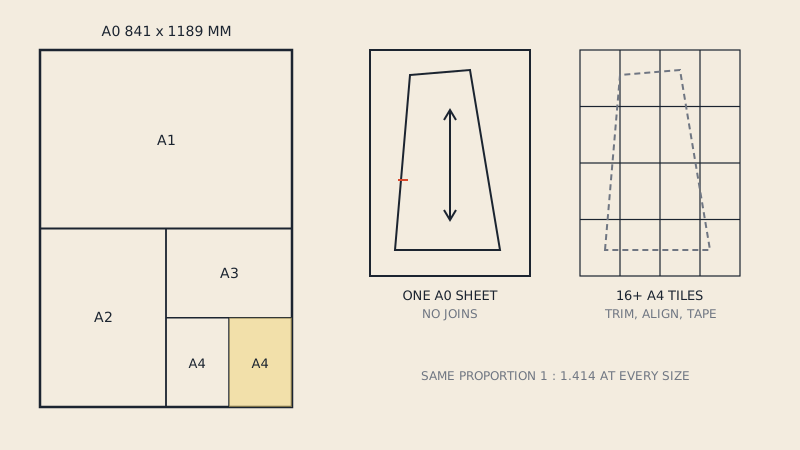
Large sheets avoid most of these issues because there are fewer pages and no tile joins. If you plan to print at a copy shop, ask for the file to be printed at 100 % - and if the pattern only exists as home-print tiles, our converter builds a one-page copy-shop sheet from them, along with A0, A1, A2, A3, A4 and US Letter files that each begin with a 10 cm and a 3" test square. The A0 printing guide explains what to ask for at the counter.
FAQ
Why does my PDF pattern print smaller than it should?
Usually because the PDF reader or printer driver resized the page to fit the paper. Set the reader to Actual size or 100 %, turn off any fit or shrink option, and print from a desktop reader instead of a browser tab.
What is the correct print setting for a PDF sewing pattern?
Actual size, or a custom scale of 100 %, with no fit-to-page or shrink-oversized-pages option. The paper size in the printer settings should match the page size of the file.
My test square is 9.4 cm instead of 10 cm. What happened?
A shrink of about 6 % usually means an A4 page was fitted onto US Letter paper, or a fit option reduced the page to the printer's margins. Print at 100 % on the paper size the file was made for.
Can I fix a scaling error by printing at a custom percentage?
Only as a last resort. Find and switch off the setting that shrank the page instead; compensating with a custom scale is imprecise and has to be repeated for every print.
Why are lines cut off at the edge of my printed pattern pages?
Your printer cannot print to the very edge of the paper. If the cut-off area only holds margin it does not matter; if it holds lines or match marks, use a printer with smaller margins or a large-format print.