When a DXF pattern will not open, opens empty, or opens as a mess of lines, the cause is almost always one of a short list: the wrong import option, units that make the pattern microscopic or enormous, geometry on layer 0, entity types the importer does not read (splines, lightweight polylines), blocks it does not expand, a DXF version it does not expect, text encoding, or outlines that are not closed. Work through the fixes below in order; the first three solve most cases.
You need two tools for diagnosis: a free DXF viewer (or LibreCAD), and a plain text editor. DXF is a text format, so you can read it directly.
Quick diagnosis table
| Symptom | Most likely cause | Fix |
|---|---|---|
| Import error, nothing at all | Wrong DXF version or corrupted file | 1, 8 |
| Opens but screen is empty | Units or geometry far from origin | 2, 3 |
| Pattern tiny or huge | Units | 2 |
| One giant piece or loose lines | Plain DXF or layer 0 | 1, 4 |
| Some pieces missing | Blocks, splines, open outlines | 5, 6, 9 |
| Garbled piece names | Encoding | 7 |
| Pieces import but cannot be sewn or nested | Open outlines | 9 |
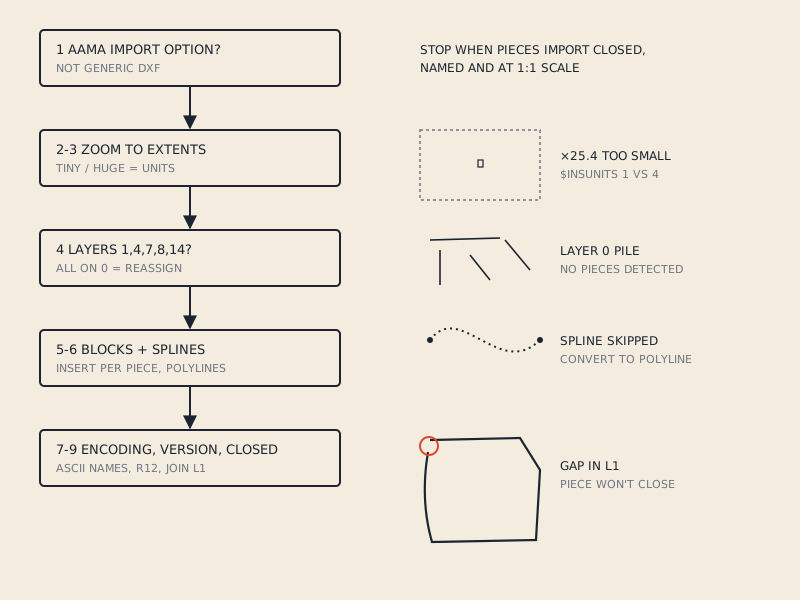
1. Use the right import option
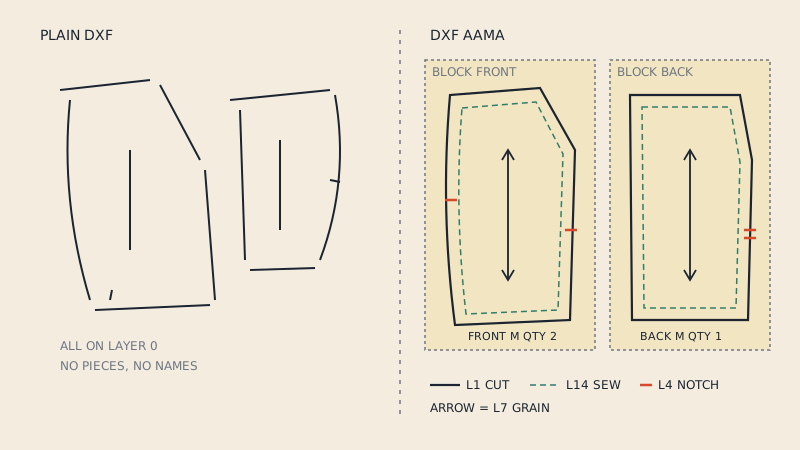
Pattern programs often have two ways to bring in a DXF: a generic DXF import (as drawing) and a DXF AAMA or AAMA/ASTM import (as pattern pieces). In CLO3D and Marvelous Designer the pattern route is File > Import > DXF (AAMA/ASTM). Using the wrong one either fails or gives you lines instead of pieces.
The reverse also happens: a plain DXF from a drawing program imported through an AAMA importer may produce nothing, because the importer looks for blocks and numbered layers that are not there. How to tell the two apart is in what is a DXF AAMA file.
2. Check the units
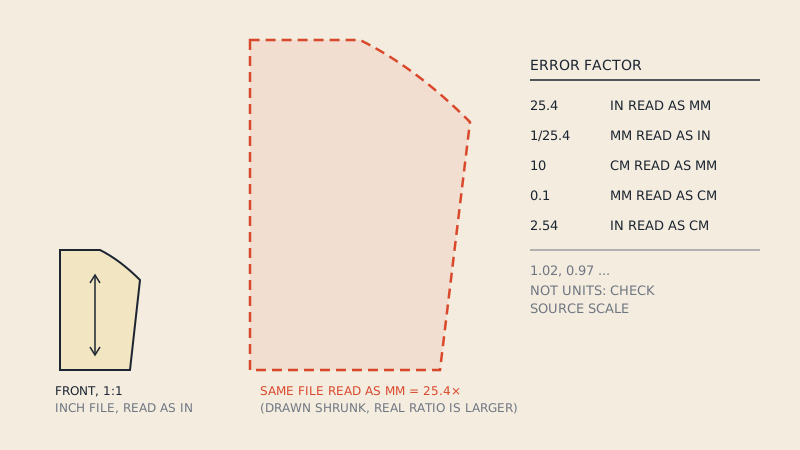
The most common reason a pattern "opens empty" is that it opened at the wrong scale: 25.4 times too small (inches read as millimetres) and too tiny to see, or 25.4 times too big and off the screen.
- Zoom to extents (fit all) after import. If something appears, it is a scale problem.
- Measure a known dimension: a straight seam, a cuff width or a test square.
- Look in the import dialog for a unit setting and try the other one.
- In the text editor, search for
$INSUNITSin the header. A value of 4 means millimetres, 1 means inches, 0 means unitless. AAMA files often also state units in text such as "Units: METRIC" or "Units: ENGLISH".
The full story of unit mix-ups, including unitless files, is in DXF units in pattern files.
3. Find geometry far from the origin
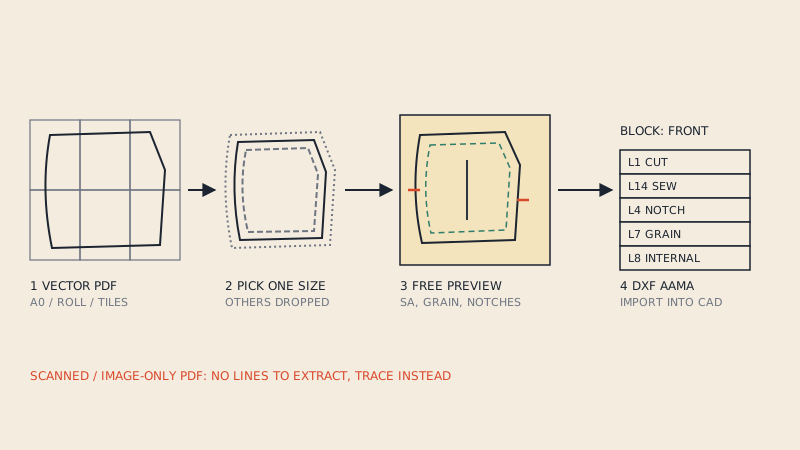
Some files place pieces at very large coordinates, for example when they were exported from a big CAD drawing or from page positions in a PDF. The importer places them correctly but the view stays at the origin, so the screen looks empty.
- Use zoom to extents or "fit to window".
- In a viewer, check the coordinates of any entity. If they are in the hundreds of thousands, move the geometry closer to 0,0 in a CAD editor and save.
4. Move entities off layer 0
If everything sits on layer 0 (or on layers named after colours), a pattern importer cannot tell cut lines from notches and grain. You get one big object, loose lines, or every closed shape as a piece.
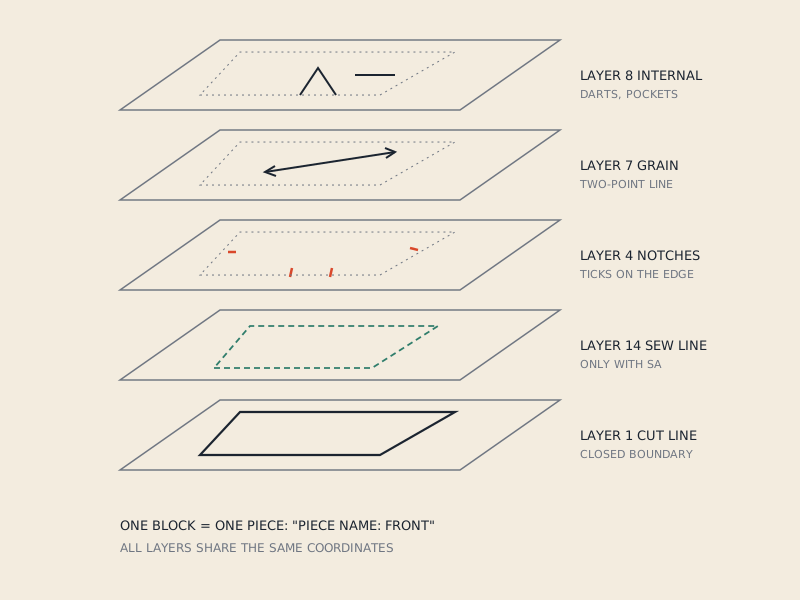
The fix is manual in a CAD editor: put outlines on layer 1, notch ticks on layer 4, grain lines on layer 7, darts and placements on layer 8, sew lines on layer 14. The meaning of each layer is in the AAMA DXF layers, one by one. If the file came from a generic PDF converter, expect other problems too, described in why generic PDF to DXF converters fail on sewing patterns.
5. Expand or fix blocks
AAMA files store each piece as a block, placed into the drawing with an INSERT entity. Problems arise when:
- Blocks are defined but never inserted. The file contains the pieces in its BLOCKS section, but the ENTITIES section is empty, so many programs show nothing. Fix by inserting the blocks in a CAD editor, or ask for a re-export.
- Blocks are nested. A block inside a block inside a block. Some pattern importers only read one level. Explode the outer level in a CAD editor and save, keeping each piece as one block.
- Blocks were exploded. The opposite problem: a generic CAD program exploded all blocks, so pieces lost their grouping. A pattern importer then sees loose lines. Regroup each piece into a block, or go back to the original file.
In the text editor, search for INSERT in the ENTITIES section; there should be one per piece.
6. Convert splines to polylines
Curves can be written as polylines (many short straight or arc segments) or as SPLINE entities. Many pattern importers, especially older ones, read polylines only and silently skip splines. Pieces with curved edges then arrive with gaps, or not at all.
Fix: in a CAD editor, convert splines to polylines with a fine tolerance, then re-save. The same applies to ellipses. If you can control the export, choose polyline output.
7. Fix text encoding
Piece names with accented letters, Cyrillic or Asian scripts can break an import or show as garbled characters. Older DXF versions store text in a code page declared in the header ($DWGCODEPAGE), newer ones in Unicode. A mismatch between what the file says and what the importer expects causes the problem.
- If the import fails, try a copy of the file with piece names changed to plain ASCII letters.
- If it imports with garbled names, rename the pieces after import.
- If you can control the export, use ASCII piece names for exchange files.
8. Try another DXF version
DXF has many versions. R12 is the oldest still in wide use and the most compatible; R2000 and later add entity types such as LWPOLYLINE (lightweight polyline) that some older pattern importers do not read. Files saved by very recent general CAD programs can include structures that pattern software ignores.
- Open the file in a CAD editor and save as R12 DXF, or R2000 if R12 is not offered.
- Check the importer's documentation for a supported version; follow it rather than guessing.
- In the text editor,
$ACADVERin the header shows the version:AC1009is R12,AC1015is R2000.
Also confirm the file is not truncated or binary. A DXF that ends without EOF was cut off during download or export. Binary DXF exists but is rarely used for patterns; if the file does not open as readable text, re-export as ASCII DXF.
9. Close open outlines
A piece that imports but cannot be sewn, nested or given seam allowance usually has an open boundary: the outline is several segments, or the last point is a fraction of a millimetre from the first.
- In CAD, join the boundary segments into one polyline and close it.
- Check for tiny overlaps or duplicate segments at tile joins, which also prevent closing.
- In CLO3D, an open outline may come in as internal lines rather than a piece; close it in 2D and convert it to a pattern.
When the file is from a converter
If your DXF came from our PDF to DXF AAMA converter and it does not open in your CAD, contact us with the program and version you use. Files are written as DXF AAMA with one block per piece on the standard layers; if a file does not open in your software and the problem cannot be fixed, you get a refund.
If you are still deciding how to get a DXF from a PDF in the first place, how to convert a PDF sewing pattern to DXF compares the options.
FAQ
Why does my DXF pattern open empty?
Usually the pattern opened at the wrong scale or far from the origin. Zoom to extents first; if the pieces appear tiny or huge, change the unit setting in the import dialog.
Why does my DXF import as loose lines instead of pattern pieces?
The file is probably a plain DXF with everything on one layer, or you used a generic DXF import instead of the AAMA import. Use the DXF AAMA option and check that the file has numbered layers and one block per piece.
Why are some pieces missing after import?
Common causes are curves stored as splines that the importer skips, blocks that are nested or not inserted, and outlines that are not closed. Convert splines to polylines and check each piece's boundary.
Which DXF version is safest for pattern exchange?
R12 ASCII DXF is the most widely compatible. If your software documents a different supported version, use that one.
How do I check a DXF file without CAD software?
Open it in a text editor. Look for $INSUNITS and $ACADVER in the header, BLOCK and INSERT entries for pieces, layer numbers such as 1, 4 and 7, and EOF at the end of the file.