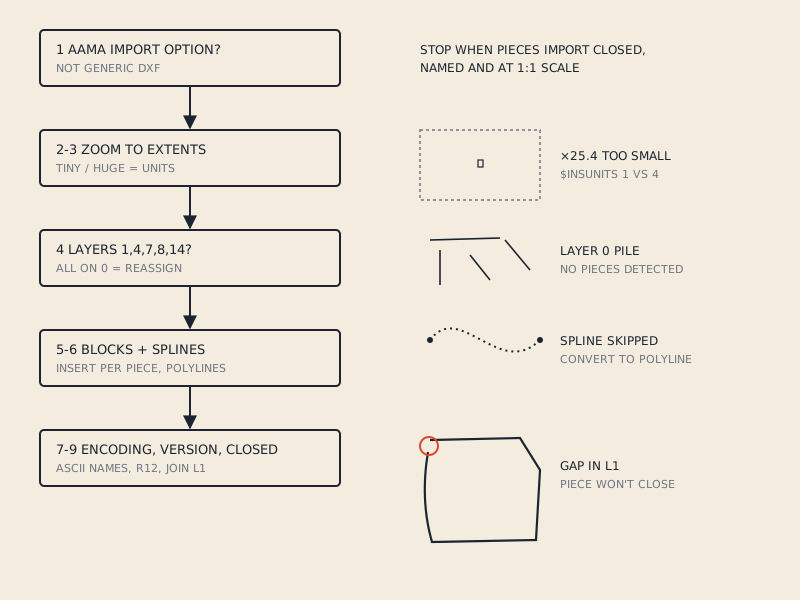
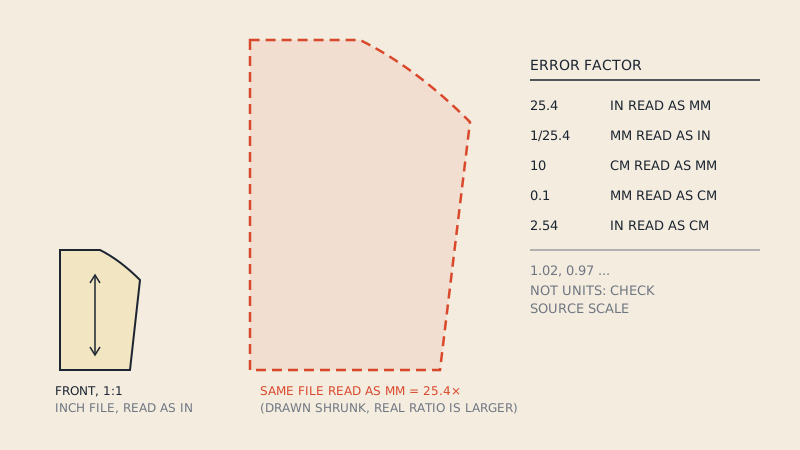
A DXF file stores coordinates as bare numbers. A point at 600 can mean 600 mm, 600 cm or 600 inches, and the file may or may not say which. When the importing program guesses wrong, your pattern arrives 25.4 times too big (inches read as millimetres), 25.4 times too small (the reverse), or 10 times off (centimetres against millimetres). The fix is almost always an import setting, not a redraw.
This article explains where DXF units live, how to recognise each kind of mix-up from the size of the error, and how to confirm the scale with one measurement before you sew, grade or simulate anything.
Why DXF has a units problem at all
DXF started as an exchange format for general CAD drawings, where the drawing unit was a matter of convention inside a project. The format records geometry as numbers in "drawing units". Telling the reader what a drawing unit is was added later, and it is optional.
Three things decide how a program interprets the numbers:
- A header variable in the file, if present (
$INSUNITS, see below). - Any units note the exporting software wrote into the file, which some pattern CAD programs read.
- The importing program's own default or the option you pick in its import dialog.
If those three disagree, the program usually trusts the last one. That is why the same file can open correctly on one computer and huge on another.
$INSUNITS: the header variable that should settle it
Since the AutoCAD 2000 version of the format, a DXF header can carry $INSUNITS, an integer code for the drawing unit. The values that matter for patterns:
$INSUNITS value | Meaning | What 600 means |
|---|---|---|
| 0 | Unitless (not specified) | Whatever the reader assumes |
| 1 | Inches | 600" (15.24 m) |
| 4 | Millimetres | 600 mm (60 cm) |
| 5 | Centimetres | 600 cm (6 m) |
There is also $MEASUREMENT (0 = imperial, 1 = metric), which affects hatch and linetype defaults rather than geometry scale. A file can have metric $MEASUREMENT and still be unitless for geometry.
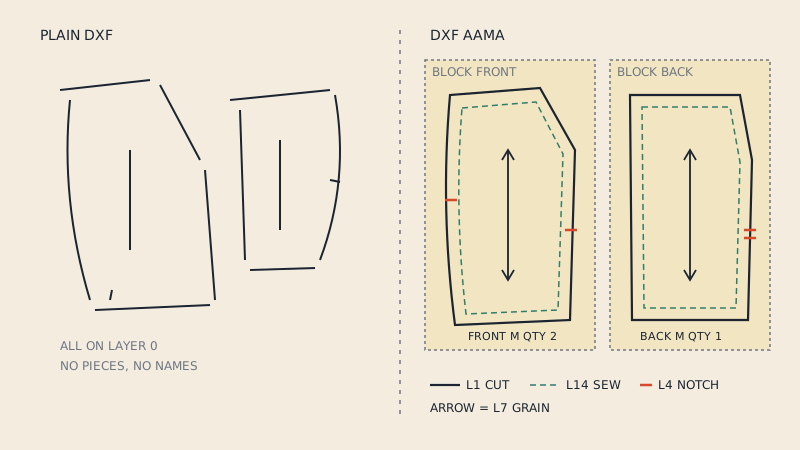
The catch for pattern files: many DXF AAMA files are written in the old R12 flavour of DXF, which predates $INSUNITS. Plenty of exporters also write 0. So in practice a large share of pattern DXFs are effectively unitless, and the importing program falls back on its own setting. If you want the full background on how AAMA files are structured, see what a DXF AAMA file is.
Reading the error: the factor tells you the cause
When an import looks wrong, measure something and divide. The ratio between what you got and what you expected points straight at the mix-up.
| Imported size ÷ real size | Likely cause | Fix |
|---|---|---|
| 25.4 | File in inches, read as millimetres | Import as inches |
| 0.0394 (1/25.4) | File in millimetres, read as inches | Import as millimetres |
| 10 | File in centimetres, read as millimetres | Import as centimetres |
| 0.1 | File in millimetres, read as centimetres | Import as millimetres |
| 2.54 | File in inches, read as centimetres | Import as inches |
| 0.3937 | File in centimetres, read as inches | Import as centimetres |
| Close to 1, but 1–3 % off | Not a units problem | Check the source PDF print scale or the export |
A clean factor (25.4, 10, 2.54) is a units mismatch. A messy factor such as 1.02 or 0.97 is something else: a PDF exported at the wrong page scale, a pattern traced from a slightly off print, or a scan. Changing units will not fix those.
Recognising it by eye
You often do not need a ruler to spot the big errors:
- 25.4× too big: a skirt front fills a space the size of a car park, or the program zooms out until the avatar is a dot. In 3D software the piece may sit far outside the scene.
- 25.4× too small: a whole jacket set appears as a cluster of specks; pieces look like notches.
- 10× off: harder to spot on a laptop screen. A sleeve that should be 60 cm (23 5/8") long reads 6 m or 6 cm on the ruler tool.
How to check scale with one known line
Do this every time you import a pattern from a new source, even if it looks right. A 2 % error is invisible on screen and very visible in a fitted bodice.
- Pick a known dimension. The best is a measurement printed on the original pattern: a finished length, a test square, a marked grain line length. Next best is a measurement you can take from the PDF at 100 % (the test square is made for this).
- Use a straight line. Grain lines, centre front, centre back and hem lines of straight pieces are ideal. Curves are hard to compare because programs measure them differently.
- Measure in the CAD. Use the program's ruler or line-length tool, not the grid. Grids rescale with zoom and can hide a factor of 10.
- Divide. Imported length ÷ expected length. Compare with the table above.
- Re-import with the right unit, rather than scaling the pieces afterwards. Scaling in place usually works, but re-importing keeps the program's internal unit consistent with the file, which matters if you export again later.
- Re-measure. Then check one more line on a different piece to make sure all pieces share the scale.
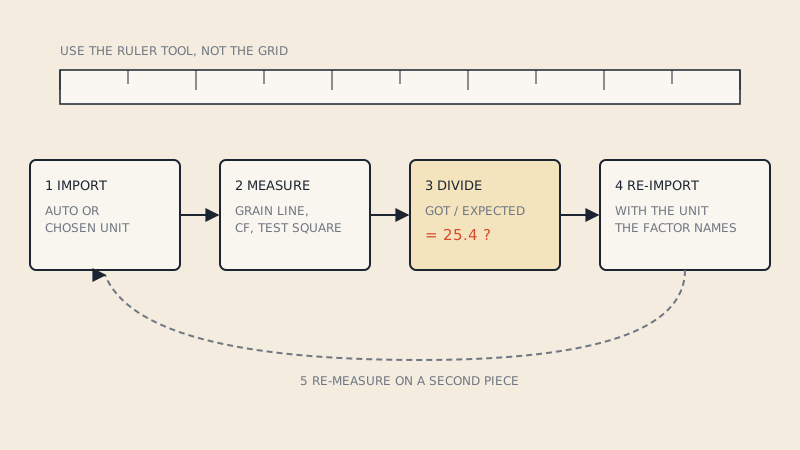
If the ratio is 1.00 within about 0.5 %, you are done. Most pattern work tolerates that; for production patterns many studios aim tighter.
Where to set units in common programs
Every pattern and 3D program has a units choice on DXF import, but menu names vary by version. In general terms:
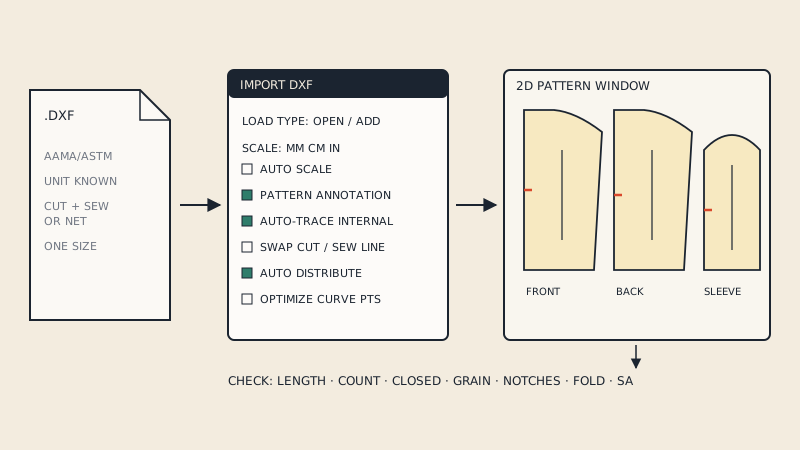
- CLO3D and Marvelous Designer show a Scale setting in the DXF (AAMA/ASTM) import dialog, with an automatic option that tries to detect the unit. If the auto option guesses wrong, switch it off and pick the unit yourself. Our CLO3D import guide walks through the dialog.
- 2D pattern CAD (Gerber, Lectra, Optitex and similar) usually ask for the unit in the import step or take it from a units parameter in the import settings. Check those settings before blaming the file.
- General CAD (AutoCAD-type programs, LibreCAD, Inkscape DXF import) generally read
$INSUNITSwhen present and otherwise use the drawing's default unit or ask you.
If you export a DXF yourself, choose the unit deliberately and tell the recipient which one it is. A short line in the email ("DXF in millimetres, AAMA") prevents most scale problems at the other end.
Mixed signals inside one file
Occasionally a file contradicts itself: the header says inches, a units note in the text says metric, and the geometry clearly matches centimetres. This usually happens when a file has passed through several programs, each adding its own header without converting coordinates.
When that happens, trust the geometry. Measure a known line as above, decide what the numbers really are, and set the import unit to match. Then save a clean copy from the program that read it correctly, so the next person does not hit the same problem.
Units are not the only reason a pattern looks wrong
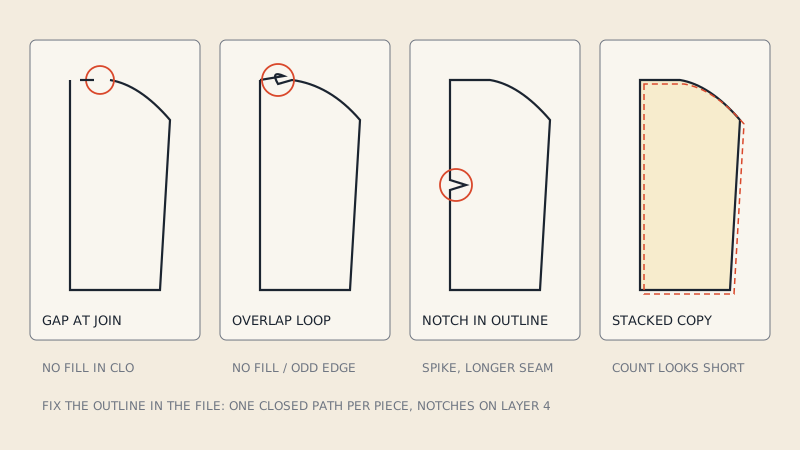
A pattern at the right scale can still import badly. Pieces may come in as loose lines on layer 0, curves may be split into thousands of tiny segments, or the file may open empty. Those are structure problems, covered in DXF pattern won't open. For problems specific to 3D, see CLO3D DXF import problems.
When the DXF is one you produced by converting a PDF, the scale depends on the PDF itself being 1:1. A vector PDF pattern made for printing at 100 % holds true dimensions, so a pattern-aware conversion keeps them; the converter shows the size of every detected piece in the free preview, so you can compare a length against the printed pattern before paying.
FAQ
What does $INSUNITS mean in a DXF file?
$INSUNITS is a header variable that records the drawing unit as a code: 0 for unitless, 1 for inches, 4 for millimetres and 5 for centimetres. Older R12 DXF files, which many pattern programs still write, do not have it, so the importing program has to assume a unit.
Why is my DXF pattern 25.4 times too big?
The file was written in inches and read as millimetres. Re-import it with the unit set to inches, or switch off automatic unit detection and choose inches manually, then measure a known straight line to confirm.
My pattern is 10 times too small after import. What happened?
A factor of 10 means a centimetre and millimetre mix-up: the file is in millimetres and the program read it as centimetres. Re-import with millimetres selected.
Should I scale the pieces after import or re-import?
Re-importing with the correct unit is cleaner, because the program's internal unit then matches the file and later exports stay consistent. Scaling after import works for a quick look but is easy to forget when you export.
My pattern is about 2 % too big. Is that a units problem?
No. Units errors give clean factors such as 25.4, 10 or 2.54. A small odd error usually comes from the source: a PDF exported or printed at the wrong scale, a traced or scanned pattern, or a pattern that was never 1:1.