When a DXF imports badly into CLO3D, the cause is almost always in the file, not in CLO. Open shapes come from outlines that do not join; wrong scale from a unit mismatch; missing pieces from geometry outside piece blocks or on unexpected layers; extra pieces from text and marks drawn as closed shapes. Find the symptom below, read the cause, and fix it either with an import setting or in the file.
This is a troubleshooting reference. For the normal import procedure and settings, see how to import a DXF into CLO3D.
Quick lookup
| Symptom in CLO | Most likely cause in the file | First thing to try |
|---|---|---|
| Nothing appears | Geometry not in AAMA blocks, or wrong DXF flavour | Check the file is DXF AAMA/ASTM; open it in a viewer |
| Pieces show as lines only, no fill | Open outlines (gaps at joins) | Close the gaps; re-export |
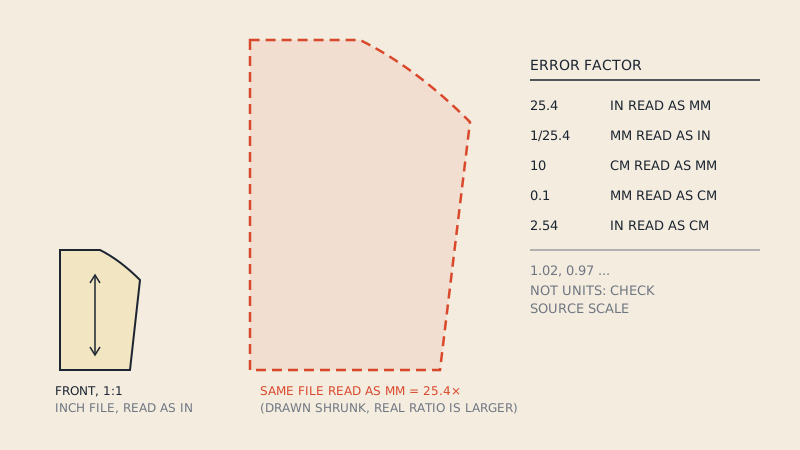
| Pattern 25.4×, 10× or 2.54× off | Unit mismatch | Re-import with a manual scale |
| Fewer pieces than expected | Pieces on unexpected layers, or merged | Check layers; check for overlapping duplicates |
| Many tiny extra pieces | Text, notches or symbols drawn as closed shapes | Delete them; fix the export |
| Pieces stacked on top of each other | All blocks at the same origin | Use Auto Distribute, or spread manually |
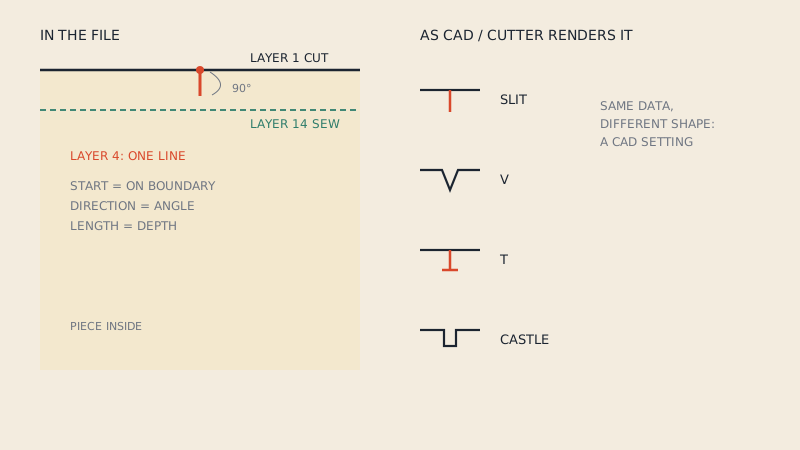
| No notches | Notches not on layer 4, or not touching the edge | Re-export with AAMA notches |
| No grain lines, fabric direction wrong | No layer-7 line in the piece | Set grain in CLO; fix the export |
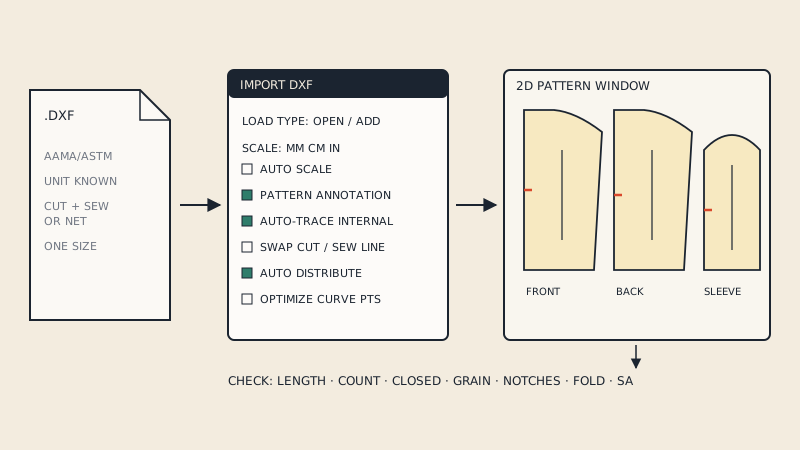
| Seam allowance inside the piece | Cut and sew line roles reversed | Re-import with Swap Cutting Line and Sewing Line |
| Garment too big when simulated | Outline includes allowance, no sew line | Use a net file or one with both lines |
| Jagged or heavy curves, slow editing | Curves as thousands of tiny segments | Optimize curve points on import |
| Spikes on edges | Notches merged into the outline | Clean the outline; add notches in CLO |
| Mirror/fold pieces only half | Half piece with fold, no unfold | Unfold or mirror the piece in CLO |
The sections below explain each in more detail.
Nothing appears, or the import fails
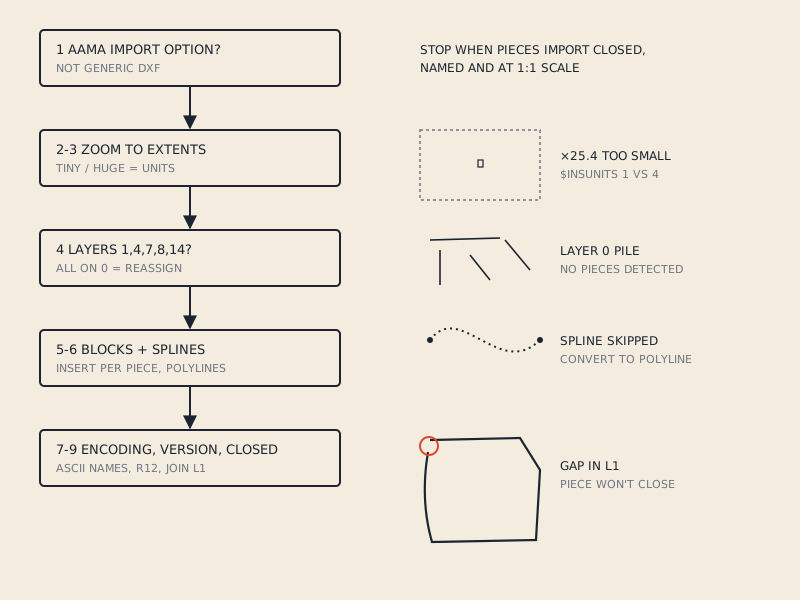
CLO's DXF importer expects AAMA or ASTM structure: each piece as a block with its boundary on a known layer. A generic DXF, for example from a general CAD program or a basic PDF-to-DXF tool, can store everything as loose lines on layer 0 with no blocks at all. CLO may import nothing, or import a single unusable object.
Open the file in any free DXF viewer. If you see lines but no blocks, and every line is on layer 0, the file is not AAMA. It needs to be rebuilt as an AAMA file; why generic converters fail on patterns explains what is missing. For broader causes (encoding, file version, empty files), see DXF pattern won't open.
Open shapes: pieces without fill
A piece in CLO has to be a closed outline. If the boundary has a gap, even a tiny one, CLO cannot form a piece and shows the lines without the fill.
Typical sources of gaps:
- Outline drawn as many separate segments whose ends do not meet exactly.
- Outline that was split at tile edges in the original PDF and never joined.
- A segment missing where a notch, label or size line crossed the outline.
- Two segments that overlap rather than meet, leaving a tiny loop.
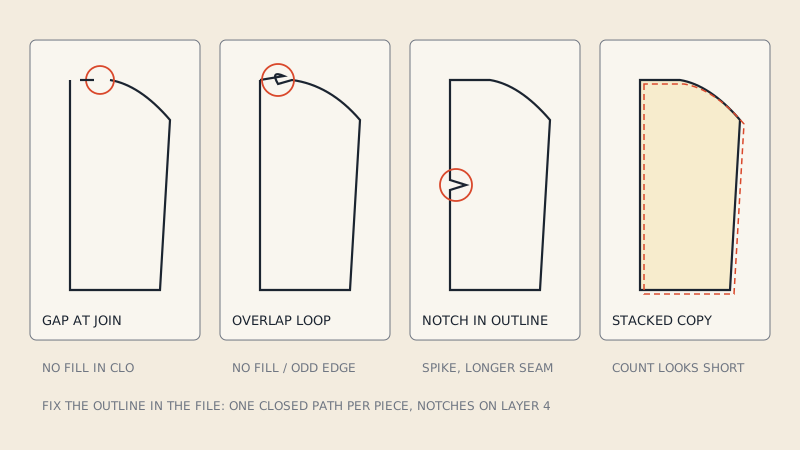
Fix gaps in the source CAD and re-export, or in CLO by connecting the line ends with its pattern editing tools for one or two pieces. If every piece is open, fix the export: one tidy closed outline per piece is the core of a good AAMA file.
Wrong scale
A clean factor of 25.4, 10 or 2.54 between what you see and what you expect is a unit mismatch. Turn off Auto Scale in the import dialog and pick the unit yourself. The full explanation, including how to measure and divide, is in DXF units in pattern files.
A small, messy error, such as 2 % too big, is not a unit problem. It usually comes from a PDF that was exported or traced at the wrong scale, and import settings will not fix it.
Missing pieces
When the piece count is short:
- Pieces on unexpected layers. If a piece's boundary is on a layer other than the boundary layer, CLO may read it as an internal line of another piece or skip it.
- Overlapping duplicates. Two identical pieces stacked exactly on top of each other look like one. Auto Distribute, or moving one piece, reveals the second.
- Pieces merged. If two pieces touch along an edge in the file, a poor export may have joined them into one outline.
- Half pieces. A "cut on fold" piece is one half; CLO shows half a front until you unfold it. Not missing, but easily mistaken for it. See place on fold.
Extra pieces
A long list of tiny pieces usually means something other than outlines was exported as closed shapes:
- Text converted to curves. Each letter's outline becomes a closed shape.
- Notches drawn as triangles, buttons as circles, drill holes as small squares.
- Logos, arrows and size labels from a print PDF.
Delete them in CLO if there are a few; otherwise ask for a file where text is text and marks are on their AAMA layers.
Notches and grain lines missing
CLO reads notches from layer 4 and grain from layer 7. If they are on layer 0, part of the outline, or not touching the boundary, they will not arrive as notches and grain. Notch faults are explained in depth in how notches are stored in DXF AAMA.
A missing grain line is easy to overlook because CLO will still simulate. But the fabric's warp may run in the wrong direction on rotated or bias pieces, changing drape. Set the grain in CLO for each affected piece, or fix the export.
Seam allowance problems
Three distinct problems look similar:
- Allowance on the inside, or pieces shrunken. The file's cut and sew lines are being read the wrong way round. Re-import with the Swap Cutting Line and Sewing Line option.
- Garment simulates too big. The file has only one outline and it includes allowance. CLO sews on the outline, so every seam is one allowance-width too wide. Use a net file, or a file with both lines (cut on layer 1, sew on layer 14).
- Allowance width wrong. The sew line is offset by an unexpected amount, often because the source pattern used a different allowance than you assumed.
Heavy, jagged or slow pieces
Files converted from other formats can describe curves as thousands of tiny straight segments. They import, but editing is slow and curves can look faceted. Optimize All Curve Points on import simplifies them. Check a seam length after optimising; simplification should not change lengths noticeably, but it is worth confirming on curved seams like armholes.
A short diagnostic routine
When an import goes wrong and the cause is not obvious:
- Open the DXF in a plain DXF viewer and look at layers and blocks.
- Re-import with Auto Scale off and a manual unit.
- Re-import with Auto Distribute on, to separate stacked pieces.
- Try the Swap Cutting Line and Sewing Line option if allowance looks wrong.
- Import a single piece from the file, if your source CAD can export one, to isolate faults.
- If the source is a converted PDF, check the conversion first: does it show closed pieces, one size, grain and notches?
When the problem is the conversion
If the DXF came from converting a PDF, most of these problems trace back to how the conversion handled tiles, sizes and marks. Our converter shows each detected piece with its size, seam allowance, grain line and notch count in a free preview before you pay, and refunds if the file does not open in your CAD and cannot be fixed.
FAQ
Why do my DXF pieces import into CLO3D as lines without fill?
The outlines are not closed. A gap at a join, a missing segment or an overlap stops CLO from forming a piece; close the outline in the source CAD and re-export.
Why is my DXF pattern huge or tiny in CLO3D?
The import used the wrong unit. Switch off Auto Scale and choose the unit the file was drafted in; an error factor of 25.4 points to inches and millimetres being swapped.
Why does CLO3D import hundreds of tiny pieces from my DXF?
Text, notches or symbols in the file were drawn as closed shapes, and CLO treats each closed shape as a piece. Delete them or re-export with text as text and notches on layer 4.
Why is my seam allowance inside the pattern piece in CLO3D?
The cut line and sew line are being read in reverse. Re-import with the Swap Cutting Line and Sewing Line option.
My garment simulates too big. Is it the DXF?
Often yes. If the file has a single outline that includes seam allowance, CLO sews on that outline and every seam gains an allowance-width. Use a file without allowance or one with separate cut and sew lines.