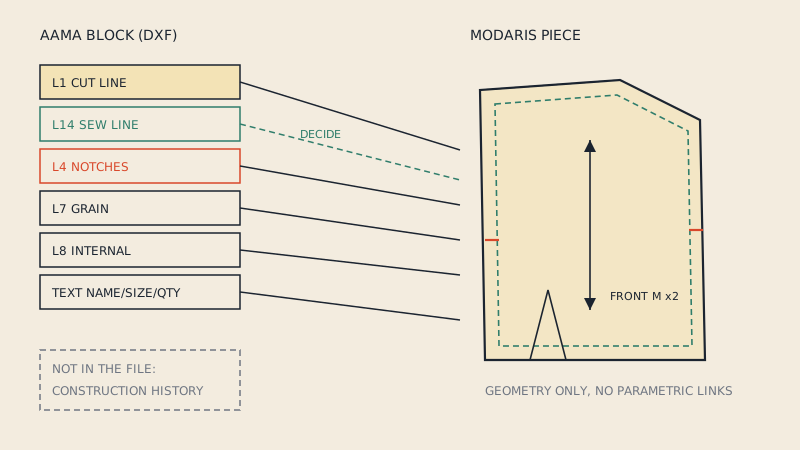
Lectra Modaris works in its own file formats, and DXF in the AAMA or ASTM flavour is the neutral route in from other systems. An AAMA file brings in the piece outlines, notches, grain lines, internal lines and piece text; it does not bring in the construction history or the parametric links that a Modaris pattern built from scratch would have. Knowing what survives the trip, and what to rebuild, is most of the job.
Lectra's import dialogs change between Modaris versions and editions, so this article stays version-neutral and describes the flow and the checks. For the exact menu path, use the help for your installed version or your Lectra support contact.
What transfers, what does not
A DXF AAMA file is a geometric description: lines on numbered layers, grouped into one block per piece, plus text. Modaris converts that geometry into its own objects. Some things map directly; some need a decision; some cannot be carried by the format at all.
| Element | In the AAMA file | In Modaris after import |
|---|---|---|
| Piece outline (cut line) | Closed line on layer 1 | Piece contour |
| Sew line | Line on layer 14 | Reference or seam line, depending on how the import treats it |
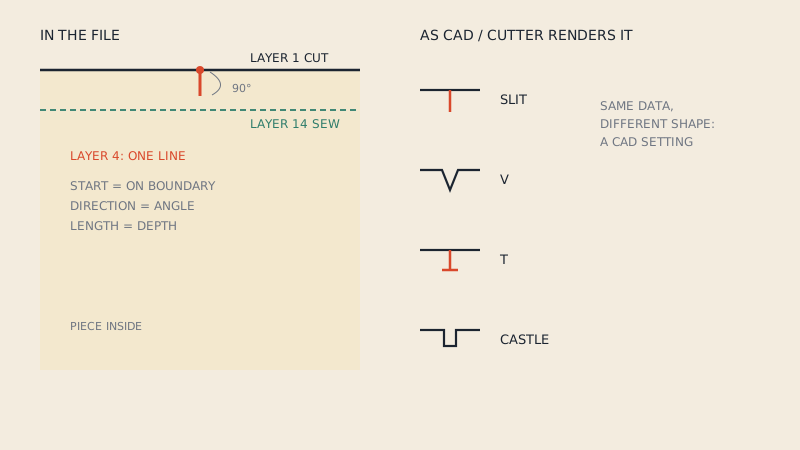
| Notches | Short line or point on layer 4 | Notches on the contour; the notch type may be a default rather than the sender's |
| Grain line | Two-point line on layer 7 | Piece grain line |
| Internal lines | Lines on layer 8 | Internal lines (darts, pockets, placements) |
| Drill holes | Points on layer 13 | Drill marks |
| Piece name, size, quantity | Text in the block | Piece information, if read |
| Grading | Separate RUL file or nested sizes | Grade rules only if the rule data is read; nested sizes do not become rules |
| Construction history, parametric links | Not in the format | Not present; the piece is "dumb" geometry |
That last line is the important one for Modaris users. A pattern drafted in Modaris knows how its points were built; an imported pattern only knows where they are. You can still edit it freely, but changes do not propagate the way they do in a pattern built in Modaris.
The import flow in general terms
- Decide where the result goes. Imported pieces become a Modaris model or pieces in your working directory; keep imported styles separate from your own masters.
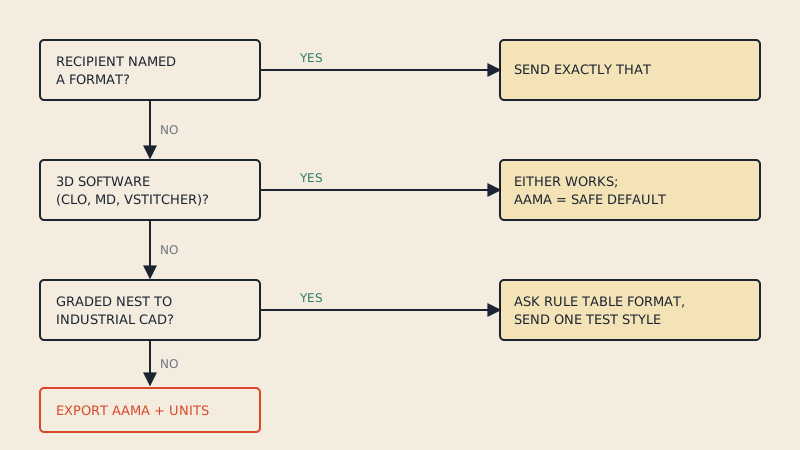
- Choose the format the file was written in, AAMA or ASTM. In user forums, AAMA is often described as the easier of the two to get into Modaris, partly because it is the simpler format. Background in DXF AAMA vs ASTM.
- Check the import settings: unit, and how layers are mapped to Modaris objects. Default mappings follow the AAMA layer numbers.
- Import and open the pieces before doing anything else with them.
Scale problems and what causes them
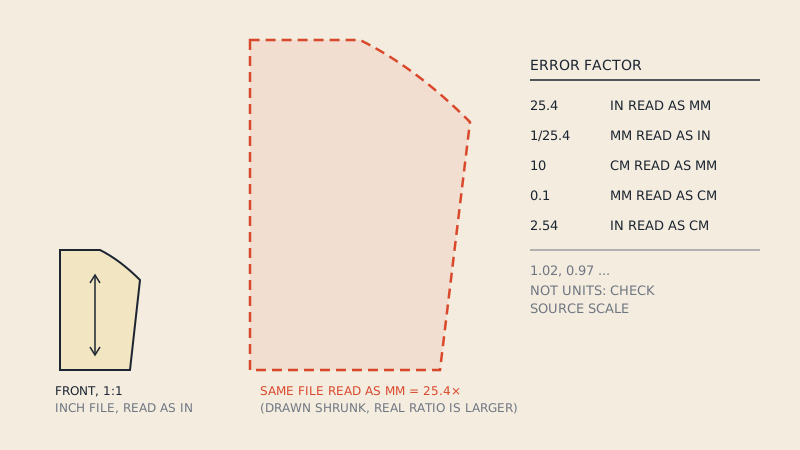
The most common complaint in user forums about DXF files arriving in Modaris is scale: pieces that are much smaller or larger than they should be. One reported case had files from CLO3D arriving about ten times too small, and the discussion pointed at the import settings on the Lectra side rather than the export.
The rule for reading the symptom is the same in every CAD:
- Factor of 25.4: millimetres read as inches or the reverse.
- Factor of 10: centimetres and millimetres confused.
- Anything else: the source was exported at a wrong scale, or a scale factor is set somewhere in the chain.
Fix it by importing again with the correct unit, not by scaling the pieces in Modaris. DXF units in pattern files explains why DXF files are so often ambiguous about their unit.
Notches: present but invisible
Another frequent report is notches that seem to be missing after import. Usually they are there but not shown as notches, because:
- they were on a layer the import did not map to notches;
- they were drawn as loose lines that do not touch the contour, so they cannot be attached to it;
- Modaris assigned a default notch type whose display differs from what you expected.
Check by zooming onto a seam where you know there is a notch. If you find a short line sitting just off the contour, the file is the problem; if you find nothing, check the layer mapping. How notches are written in AAMA files is covered in how notches are stored in DXF AAMA.
Seam allowance
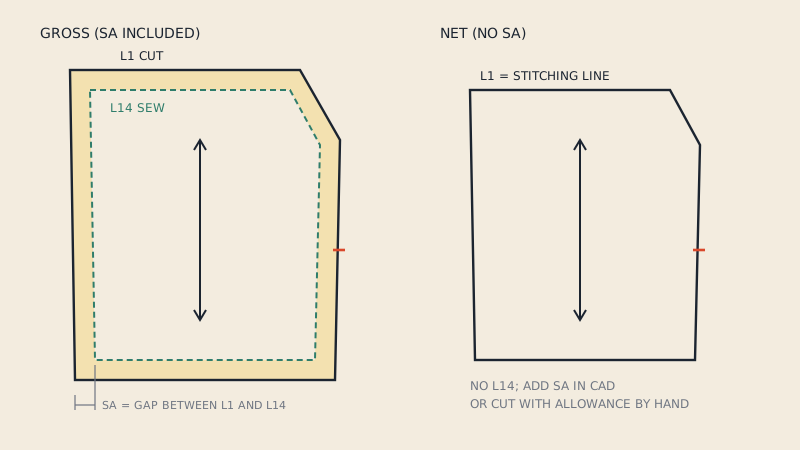
Modaris treats seam allowance as an attribute of the piece: a value on each segment of the stitching line, with the cut line generated from it. An AAMA file, by contrast, stores two lines: the cut line on layer 1 and, if the pattern has allowance, the sew line on layer 14. After import you have geometry for both lines, but not necessarily a live seam allowance setting.
Two practical approaches:
| Approach | When it suits | Result |
|---|---|---|
| Keep the imported cut line as the contour | Pieces go straight to cutting or markers | Correct cut shapes; allowance is fixed geometry |
| Rebuild from the sew line | You will alter the pattern in Modaris | A net contour with allowance set as a Modaris attribute, so edits keep the allowance consistent |
If you plan to make fit changes, rebuilding from the sew line is worth the extra time. More on the two lines in PDF to DXF with or without seam allowance.
Checks after import
- Piece count and names match the cutting list.
- Contours closed and on the correct line.
- One known measurement correct (waistband, cuff, centre front).
- Grain lines on every piece.
- Notches on the contour, matching across seams.
- Darts, pocket placements and drill holes present.
- Sizes present if grading data was supplied.
Walking a couple of seams after import is a quick way to confirm that nothing shifted; the method is in how to walk the seams of a pattern.
When the source is a PDF
Modaris cannot read a PDF pattern as pieces. If you have a vector PDF, for example an archive style or a pattern bought with a licence that permits conversion, our converter writes a DXF AAMA file for one chosen size, with the cut line on layer 1, sew line on layer 14 when the pattern includes allowance, notches on layer 4, grain on layer 7, internal lines on layer 8 and piece text. Import it as AAMA and run the checks above. If the file does not open in your CAD and cannot be fixed, the conversion is refunded.
FAQ
Can Lectra Modaris import DXF files?
Yes. Modaris imports pattern DXF files in the AAMA and ASTM formats, which are the usual exchange route from other pattern CAD and 3D software into Lectra.
Which is better for Modaris, AAMA or ASTM?
Both are supported. AAMA is often described in user forums as the easier choice because the format is simpler; if one fails, try exporting the other.
Why is my imported pattern much smaller in Modaris?
The unit was read wrongly or a scale setting is applied on import. Re-import with the correct unit; a factor of 25.4 points to millimetres and inches being confused.
Will an imported pattern behave like a pattern drafted in Modaris?
Not entirely. The DXF carries geometry, notches, grain and text, but no construction history, so edits do not propagate through the pattern the way they do in a Modaris draft.
Where are my notches after importing an AAMA file?
They may be on an unmapped layer or drawn as loose lines that do not touch the contour. Check the layer mapping and zoom onto a seam to see whether short lines sit just off the outline.