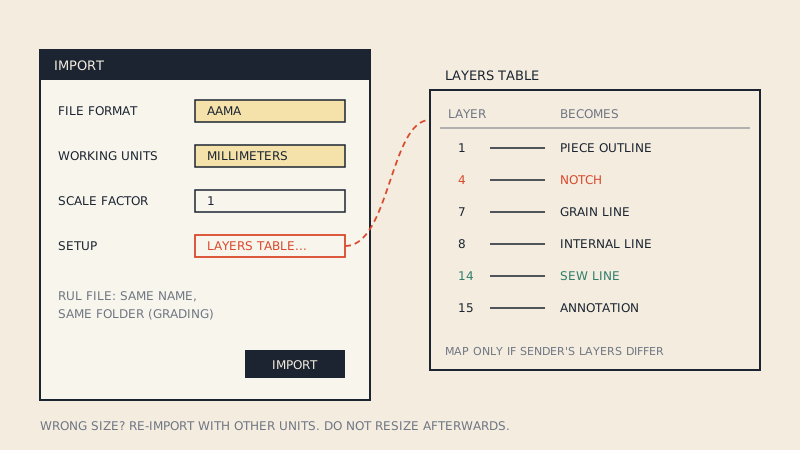
Optitex PDS does not open DXF files from the normal Open command; you bring them in through the Import dialog, available in PDS and in Marker. In that dialog you choose the file format (DXF, AAMA or ASTM), the working units and a scale factor, and, if needed, adjust the layer table so each line type lands where it should. Grading needs the matching RUL file next to the DXF.
Optitex's help documents these settings well, so this guide follows them and adds the practical side: which format to pick, how to read a wrong result, and what a good input file contains.
The four settings that decide the result
| Setting in the Import dialog | What it controls | When to change it |
|---|---|---|
| File Format | How PDS interprets the file (plain DXF, AAMA, ASTM and others) | Always set it to what the file really is |
| Working Units | The unit the coordinates are read in | For DXF and AAMA files; ASTM files carry their unit |
| Scale Factor | A multiplier applied on import | Only to correct a known scale problem |
| Layers Table (under Setup) | Which layer number becomes which kind of object | When the sender's layers differ from the standard |
Optitex's own advice, if pieces come in at the wrong scale, is to repeat the import and change Working Units or Scale Factor rather than resizing after the fact. That is good practice in any CAD: re-importing keeps notches, internal lines and seam allowance consistent.
Choosing the file format
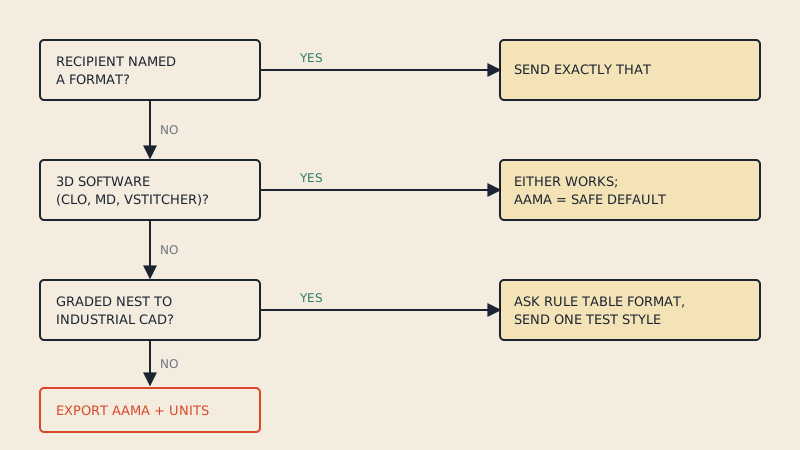
Picking the wrong format is the most common reason a file imports as nothing or as a mess.
- AAMA: the most common pattern exchange format. Choose it for files labelled DXF AAMA, which is what most pattern CAD, CLO3D and pattern converters produce.
- ASTM: Optitex notes that ASTM is mainly used by Gerber, so it suits files coming from an AccuMark system. Units are embedded in an ASTM file, so you do not need to guess them.
- DXF: plain AutoCAD DXF. Use it only for drawings that are not structured as pattern pieces, and expect to clean up.
If nothing imports, Optitex suggests trying a different format; a file called "AAMA" that was actually written as ASTM, or the reverse, is not unusual. The background on the two flavours is in DXF AAMA vs ASTM.
Step by step
- In PDS, open the Import dialog.
- Select the file and set File Format to AAMA or ASTM to match it.
- For AAMA or plain DXF, set Working Units to the unit the pattern was drafted in, most often millimetres or inches. Leave Scale Factor at 1.
- If the sender uses non-standard layers, open Setup > Layers Table and map their layer numbers to the right object types before importing.
- If the pattern is graded, make sure the RUL file with the same name is in the same folder.
- Import, then check the pieces (see the checklist below).
Units and scale: reading the symptom
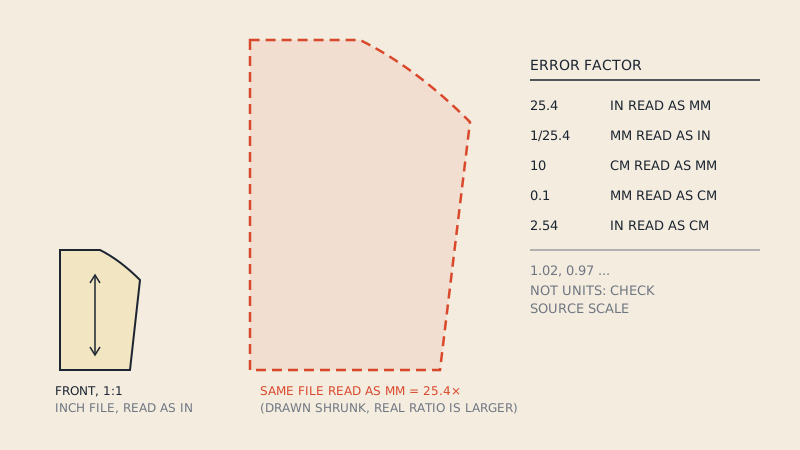
Pattern files are rarely drawn at an odd scale; almost every scale problem is a unit mismatch. The size of the error tells you which.
| What you measure vs what it should be | Likely cause | Fix |
|---|---|---|
| 25.4 times too big | Inch file read as millimetres | Working Units: inches |
| 25.4 times too small | Millimetre file read as inches | Working Units: millimetres |
| 10 times off | Centimetre/millimetre confusion | Correct the unit, keep scale 1 |
| A few percent off | Not a unit problem; source drawn or exported at a wrong scale | Check the source file, not the import |
Measure something you know: a waistband, a cuff, a straight centre front. More on how DXF files store, or fail to store, their unit in DXF units in pattern files.
Grading: the RUL file
AAMA and ASTM pattern files commonly keep the grading in a separate rule file with the extension RUL. Optitex's help states that the PDS import needs the RUL file in addition to the DXF to create sizes, and that without it the pattern loads without grading.
So when a graded style arrives with one size only, the first question is whether the RUL file was sent and whether its name matches the DXF. A single-size file without a RUL is normal input: it imports as one size and you can grade it in PDS. For the theory behind rules and grade points, see pattern grading basics.
What a good AAMA file for Optitex contains
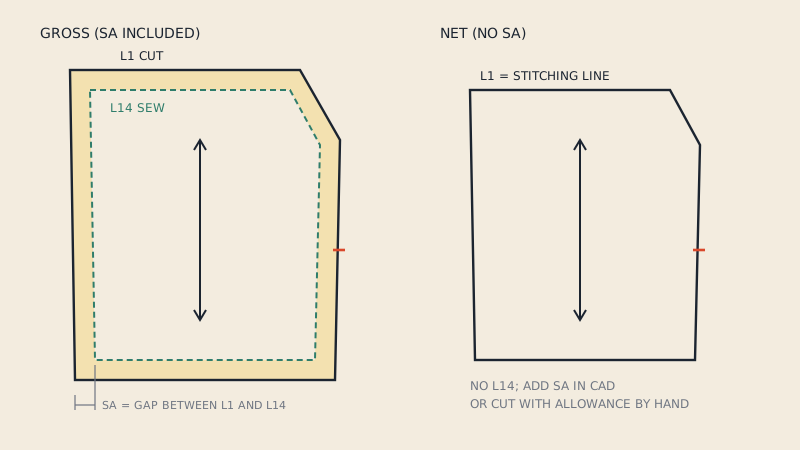
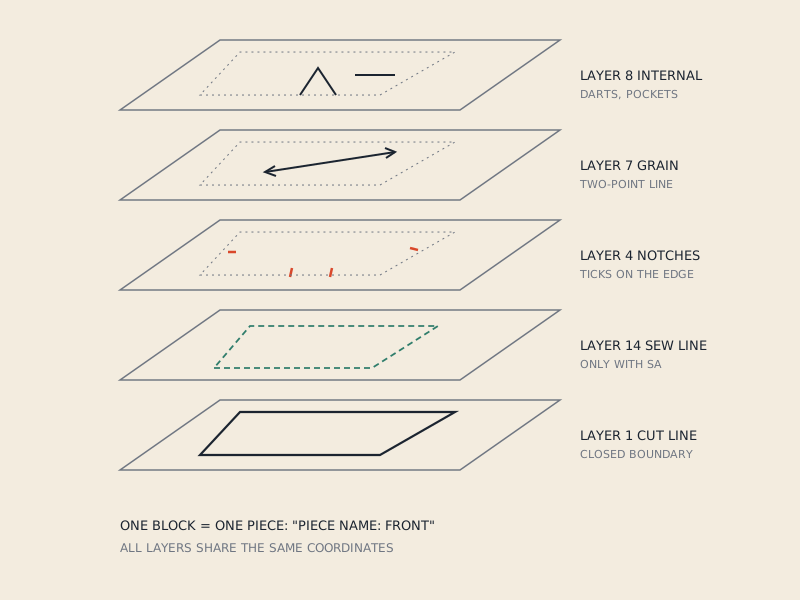
Optitex's best-practice list for importing standard formats asks for files that include seam allowance, internal lines marked as internal lines, correct scale, internal marks such as darts and pocket placements, and grading when required. In AAMA terms that means:
- Cut line on layer 1, closed for every piece.
- Sew line on layer 14 when the pattern has seam allowance.
- Notches on layer 4, grain line on layer 7.
- Internal lines (darts, pockets, buttonholes) on layer 8.
- Piece text with name, size and quantity.
Note the contrast with some 3D tools, which prefer net patterns: PDS is a production pattern system, so a gross pattern with both lines is what it expects. The full layer list is in the AAMA DXF layers, and the cut line vs sew line question in PDF to DXF with or without seam allowance.
After import: checklist
- Piece count matches the cutting list.
- Each piece is a closed piece, not loose lines.
- Seam allowance appears as allowance, not as a second outline.
- Grain lines present and correctly oriented.
- Notches on both sides of each seam.
- Internal lines and drill holes present.
- Piece names and quantities read correctly.
- Sizes present if a RUL file was supplied.
If notches or internal lines are missing while the outlines are fine, the sender's layer numbers probably differ from the standard. Go back to Setup > Layers Table, map them, and import again.
From PDF to PDS
When a style exists only as a PDF pattern, PDS cannot import it as pieces. For a vector PDF, our converter produces a single-size DXF AAMA file with the layers listed above, assembling A4 or US Letter tiles automatically and letting you pick the size from a multi-size pattern. You get a free preview of each detected piece with its size, seam allowance, grain line and notch count before you pay. Import it with File Format AAMA, and measure one piece to confirm the unit.
FAQ
How do I open a DXF file in Optitex?
Use the Import dialog in PDS or Marker rather than the normal Open command. Set File Format to match the file (AAMA, ASTM or DXF), set the working units and import.
Why does my DXF import into Optitex at the wrong size?
Usually the working units do not match the file. Optitex recommends repeating the import with the correct Working Units or Scale Factor; a 25.4 times error points to an inch/millimetre mix-up.
Why is my graded pattern only one size in Optitex?
The RUL file is missing or not named like the DXF. Optitex needs the rule file next to the AAMA or ASTM file to create the sizes.
Should the DXF for Optitex include seam allowance?
Optitex's best-practice guidance for standard formats includes seam allowance in the file. In an AAMA file that means the cut line on layer 1 and the sew line on layer 14.
What if notches or darts are missing after import?
The sender's layer numbers probably differ from the standard. Map them under Setup > Layers Table in the Import dialog and import again.