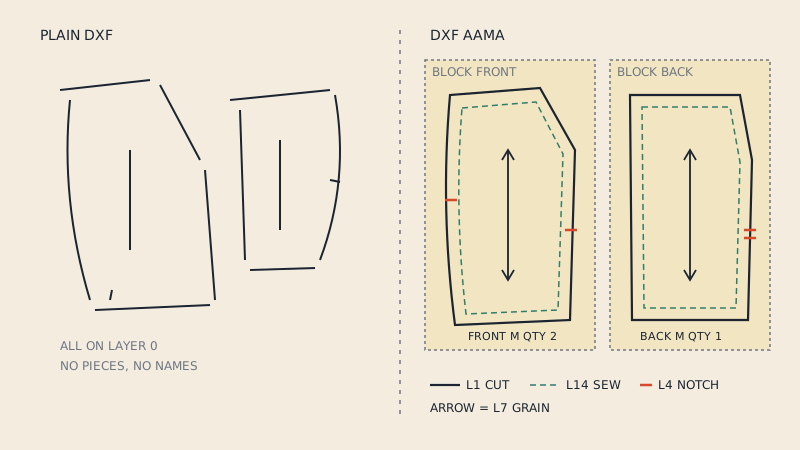
In a DXF AAMA pattern, every piece carries its own label as text inside its block: typically a line like Piece Name: FRONT, the size, and the cut quantity. Pattern CAD and 3D programs read those lines to name the pieces, show the size and plan how many to cut. When the text is missing or written the wrong way, the geometry still imports, but you get a list of pieces called "Pattern 1" to "Pattern 14" and no idea which one needs cutting twice.
This article looks only at the text side of a DXF pattern: what it is, how CAD uses it, and what to check after import.
Where the text lives
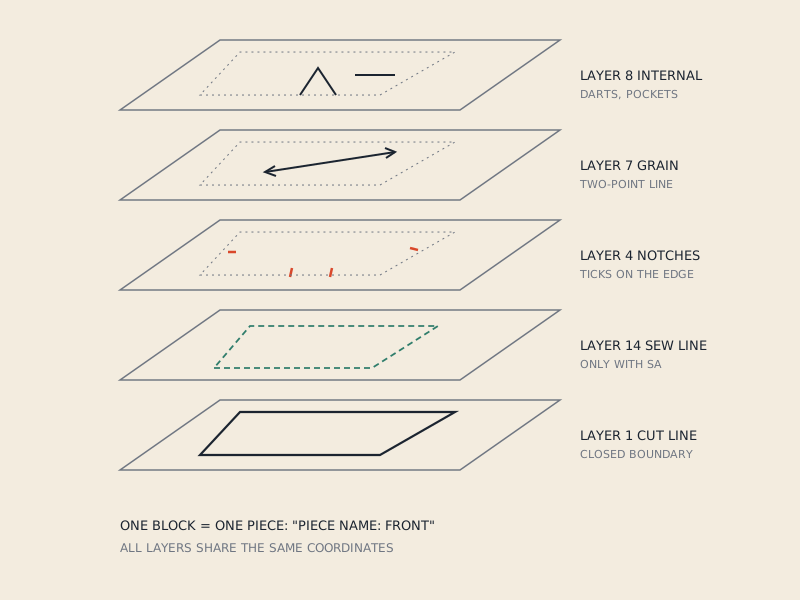
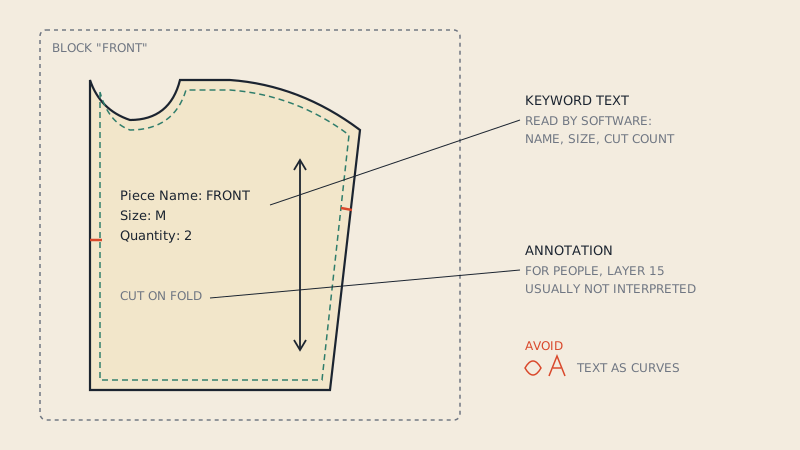
A DXF AAMA file groups each pattern piece into a BLOCK. Inside that block sit the outline, the notches, the grain line and the internal lines, each on its own numbered layer (the layer reference lists them). Alongside the geometry, the block contains TEXT entities.
Two kinds of text are common:
- Keyword text: short lines that start with a label and a colon, such as
Piece Name:,Size:andQuantity:. These are meant for software. The importing program looks for the label and reads the value after it. - Annotation text: free text placed on the piece for people, such as "CUT ON FOLD", "LINING" or a style number. Layer 15 is the annotation layer in the AAMA layer scheme.
Exporters differ in details: which layer the keyword text sits on, whether there is a space after the colon, upper or lower case, and which extra keywords they add (material, category, style name, author and creation date are common ones in file or piece headers). Importers are usually tolerant, but not always.
The fields that matter
| Keyword | Example value | What software does with it |
|---|---|---|
Piece Name: | FRONT, BACK YOKE, SLEEVE | Names the piece in the piece list and on plots |
Size: | M, 38, 10 | Shows which size the geometry belongs to; in graded files ties the piece to a size in the set |
Quantity: | 2 | Tells the program how many to cut; some CAD use it for marker planning |
| Material / category (exporter-specific) | SELF, LINING, INTERFACING | Groups pieces by fabric for markers and cutting |
| Annotation | CUT ON FOLD, 1 CM SA | Displayed as text; usually not interpreted |
The exact meaning of quantity varies. Some programs treat "2" as one piece cut twice as a mirrored pair; others just store the number and leave pairing to you. If cut pairs matter for your marker, check how your CAD reads it rather than assuming.
Why the text matters more than it looks
It is tempting to treat piece text as decoration. In practice it saves time at every step after import.
- Identification. A blouse can have 10–20 pieces, several of them near-identical rectangles (cuffs, facings, plackets, waistbands). Without names, matching them to the instructions is guesswork.
- Cutting counts. The difference between cut 1, cut 2 and cut 4 is easy to lose. A wrong count shows up only at the cutting table or, worse, in the factory.
- 3D work. In CLO3D or Marvelous Designer, named pieces make arrangement and sewing far faster; you sew "SLEEVE" to "FRONT", not "Pattern_07" to "Pattern_02". If you work in 3D, the CLO3D import guide shows where the annotation option sits.
- Hand-off. A factory receiving your DXF reads names and quantities to plan markers. Pieces arriving as "Untitled" generate questions and delays.
What text should not be
Text causes trouble when it is drawn as geometry rather than stored as text. This is common with files produced by generic converters or exported from drawing programs with "convert text to outlines" switched on.
- Every letter becomes a small closed shape. A 3D program may treat each "O" or "A" as a tiny pattern piece.
- The CAD sees no
Piece Name:keyword, so every piece is unnamed. - Hundreds of small shapes slow import and clutter the piece list.
Text outside any block is a second problem. If the label floats on layer 0 next to the piece instead of sitting inside the piece's block, the CAD cannot connect the two. It imports the text as a separate object or ignores it.
Where the names come from when converting a PDF
A PDF pattern has the same information, but as printed labels on each piece: "FRONT – CUT 2 – SIZE 12". A pattern-aware conversion reads those labels and writes them into the piece's block as keyword text. The DXFs from our converter carry piece text (name, size and quantity) in each piece; the free preview shows what was read before you pay.
Things that make the labels harder to read reliably:
- Labels set as outlined vector shapes rather than real text in the PDF.
- Labels that sit outside the piece or across a tile boundary.
- One label covering several pieces ("FRONT AND BACK – CUT 2 EACH").
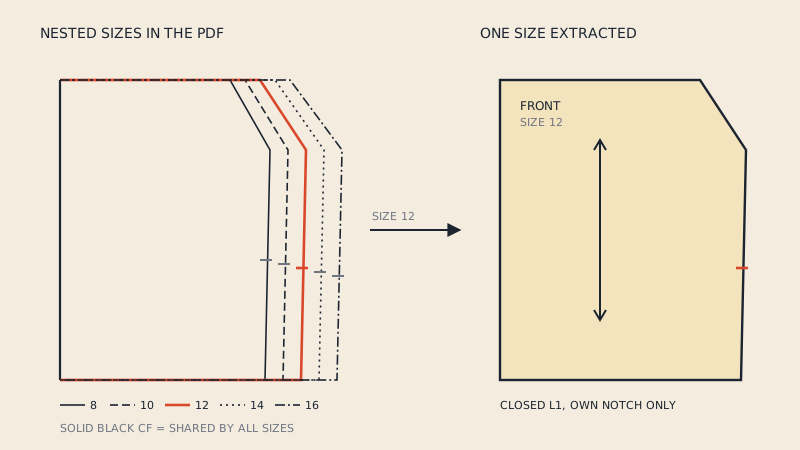
- Multi-size labels listing every size; for these the chosen size is written instead. See multi-size PDF to DXF.
What to check after import
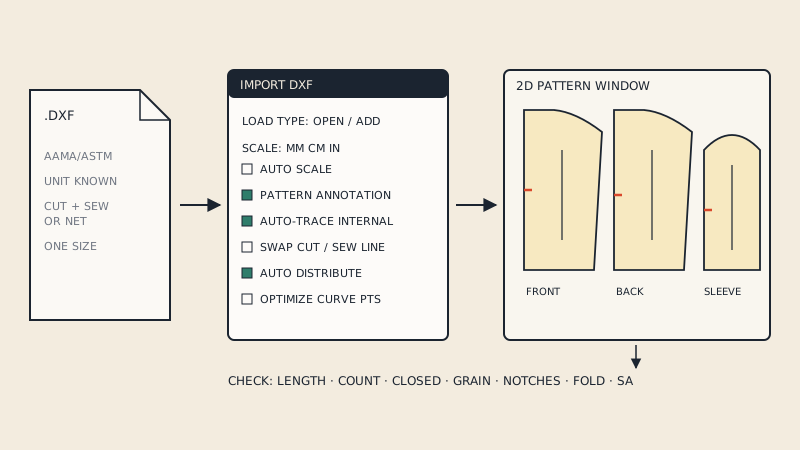
Run through this list every time a DXF comes from a new source.
- Open the piece list. Every piece should have a name, not a number. Count them against the pattern's piece list or instructions.
- Check one quantity per type of piece. Fronts, collars, cuffs and pocket bags are where counts most often go wrong.
- Check the size. In a single-size file every piece should show the same size. A stray piece from another size means the source mixed sizes.
- Look for letter-shaped "pieces". Tiny closed shapes shaped like letters mean text was converted to curves. Delete them or re-export with text kept as text.
- Check fold and grain notes. "CUT ON FOLD" written as annotation does not mirror the piece; the piece is still a half until you unfold it or the file has a mirror line. See place on fold.
- Check encoding. Accented or non-Latin names (É, Ø, Cyrillic) sometimes arrive as question marks. If so, rename in CAD; DXF text encoding differs between exporters.
| Symptom after import | Likely cause | Fix |
|---|---|---|
| All pieces named "Pattern 1, 2, 3…" | No keyword text, or text outside blocks | Rename in CAD, or ask for an AAMA export with piece text |
| Dozens of tiny extra pieces | Text converted to outlines | Delete them; re-export with text as text |
| Quantity always 1 | Quantity keyword missing or not read | Set quantities in CAD |
Names show ??? | Character encoding | Rename in CAD |
| Text visible but not in piece info | Text is annotation only, no keywords | Copy into piece properties |
Writing good piece text when you export
If you produce DXFs for others, a few habits help the receiver:
- Use short, standard names: FRONT, BACK, SLEEVE, COLLAR, COLLAR STAND, CUFF, FACING, POCKET BAG. Add LINING or INTERFACING when a piece is cut from another material.
- Give each piece a unique name. Two pieces both called "FACING" will be confused; use FRONT FACING and BACK NECK FACING.
- Fill in the quantity, even when it is 1.
- Keep fonts plain. Single-line CAD fonts travel better than decorative ones.
For the rest of the file structure, start with what a DXF AAMA file is.
FAQ
What does "Piece Name:" mean in a DXF file?
It is a keyword text line inside a piece's block in a DXF AAMA pattern. Pattern CAD and 3D programs read the value after the colon and use it as the piece's name in their piece list.
Why are my DXF pattern pieces unnamed after import?
The file either has no keyword text, keeps the text outside the piece blocks, or has the text converted into curves. You can rename the pieces in your CAD or ask for an AAMA export that includes piece text.
Does the quantity in a DXF make CAD cut a mirrored pair?
It depends on the program. Some treat a quantity of 2 as a left and right pair, others only store the number, so check how your CAD or marker software interprets it.
Why does my DXF import with lots of tiny letter-shaped pieces?
The exporter converted text into outlines, so each letter became a small closed shape. Delete those shapes or re-export with text kept as real text.
Is annotation text the same as piece name text?
No. Annotation text, on layer 15 in the AAMA scheme, is free text for people to read. Piece name, size and quantity are keyword lines that software interprets.